Even though Excel is not a database, it is widely used to store data, and it is often used to solve simple database problems. But, Excel is a "flat file database", not a relational database. When simple tables need to evolve into multiple tables of related data, Access is the first choice for information workers to quickly create a database application. Access has always been a great "data landing pad" for gathering and consolidating disparate data throughout the enterprise, much of which lives inside Excel workbooks. Once your data is in Access, you can add more tables and join them, create queries (or views of your data), structure the data and define data types to help ensure data integrity, share and update data among many users, and create powerful reports and forms.
There's no question that Access is a feature-packed product. Unlike Excel's simple spreadsheet layout, Access is organized differently with several interrelated objects that might seem daunting at first. But you don't have to be an expert to use Access. Access is designed for all kinds of users, and you can take it only as far as you need to go.
Peel back Access a layer at a time
1. Use Access in three ways: as an occasional user, a power user, or a developer.
2. Tables, queries, forms, and reports build upon each other and make up the heart of a database application.
3. Occasional users have wizards, property builders, the Office Fluent user-interface, and Excel-like features to quickly get a job done.
4. Power users have macros, the property pane, expressions, and database design tools to delve deeper and do more.
5. Developers can work with modules and develop VBA code to create custom database solutions and deploy runtime applications.
Reason 1: Copying an Excel worksheet to an Access datasheet

A good way to test the waters in this new Office family "relationship" is to copy data from Excel into Access. You can create an Access table and display it in datasheet view, which now more closely resembles an Excel worksheet. You can do common table creation tasks, such as defining a data type, a field name, or a new field, right in the datasheet view. For example, if you enter a date in a blank field, Access sets the Date/Time data type for that field. If you enter text such as a name, Access applies the Text data type to the field. If you want to move a field, just click and drag it.
When you copy data from Excel and paste it into Access, you don't even need to create a table first, or open a table in datasheet view. Access automatically asks you if your data has headers, makes good guesses at using the correct data type, and creates an Access table. It couldn't be simpler.
Reason 2: Sharing data by linking to an Excel worksheet from Access
One of the easiest ways to derive the benefits of both Excel and Access is to link an Excel worksheet to an Access table. Use an Access link when you plan to keep the data in Excel, but also regularly leverage some of the many Access features, such as reporting and querying. You link data from Access, and not from Excel.
Access supports two fundamentally different ways of creating database tables. Users can create new native tables to store the data in an Access database, or they can create links to existing data outside the Access database. Data in linked tables appear and behave in many ways just like native tables. The Linked Table Manager Wizard helps you track, locate, and update the Excel worksheet or other data source if it moves and the link breaks.
When you link to an Excel worksheet or a named range, Access creates a new table that is linked to the Excel data. If you want to add, edit, or delete data, you make the changes in Excel, and refresh (or requery) the data in the Access table. However, you cannot edit the contents of the table in Access. With your data linked to Excel, you can now create reports, queries, and read-only forms in Access.
Reason 3: Moving data by importing Excel data into Access
If you decide to cut the data cord, you can move the data to Excel by importing the data into Access. Note that the word "import" has two different meanings between Excel and Access. In Excel, when you import (or connect), you make a permanent connection to data that can be refreshed. In Access, when you import, you bring data into Access once, but without a permanent data connection. When you import data, Access stores the data in a new or existing table without altering the data in Excel. In Access 2007, you can now import any or all of the worksheets in an Excel workbook in one operation.
The Import Wizard walks you through the import steps and helps you make important decisions about whether to change data types and adding headers. If you encounter errors when importing the data, Access alerts you and saves the errors in a table so that you can quickly find and correct them. For example, there may be an alphanumeric postal code buried deep down in a column you thought was all numeric, or a duplicate ID was detected for a primary key field. You can either make the changes in the Excel workbook and re-import the data, or make the changes in the new Access table. When you complete the operation, you can save the steps that you used and even create an Outlook task to remind you when to do the import operation on a regular basis.
Once the data is imported, it is now native to Access, and you can use datasheets and forms to add, edit, and delete the data. After you import the data, you can decide whether or not to delete the data from Excel. It's usually a good idea to have only one location for updating the data.
NOTE: Importing data from Excel to Access does not import formulas, only the results of those formulas.
For more information, see:
Reason 4: Connecting to Access data from Excel
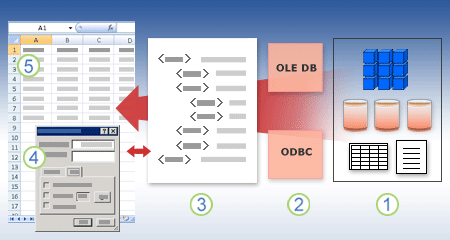
If you think your data may be home-sick, you can reconnect the cord, by bringing Access data back to Excel. To do this, create a connection in Excel, often stored in an Office Data Connection file (.odc), to the Access database and retrieve all of the data from a table or query. After you connect to the data, you can also automatically refresh (or update) your Excel workbooks from the original Access database whenever the database is updated with new information. In other words, you can have your cake and eat it too.
1. In general, you make a data connection to many data sources, in this case Access.
2. You can use either an ODBC driver or OLE DB provider.
3. A connection file defines all the information that is needed to access and retrieve data from Access.
4. Connection information is copied from a connection file into a workbook and can be edited in a dialog box.
5. The data is copied into a workbook so that you can use it just as you use data stored directly in the workbook.
For more information, see:
Reason 5: Using Access reports with Excel data
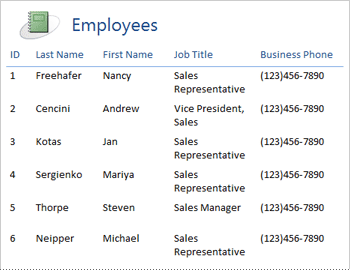
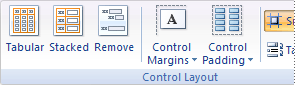
Once your data is in Access, you can take advantage of the marvelous array of report creation and customization tools. Want to create a report with just a few clicks? Use the Report Wizard. Want to design and modify the report layout in real time with live data, move and resize blocks of data, add and remove fields, and instantly see the changes as you build it? Use the new Layout view. Want to interact with the report to search, filter, and sort live data? Use the new Report view. Want to add command buttons, page numbers, pictures, hyperlinks, and professional-looking styles all on your own? Use the many control wizards and galleries in the
Controls and
Layout groups on the
Designtab of the Ribbon. The message is clear. By using Access, you can easily create simple reports, group and summary reports, mailing labels, graphical reports, and subreports.
Once the report is created, use Access to electronically distribute the report. For example, you can send the report by using an e-mail message, or save the report in different formats, such as an Access snapshot or a PDF file, to add it to a Web page or SharePoint site.
For more information, see:
Reason 6: Using Access forms with Excel data
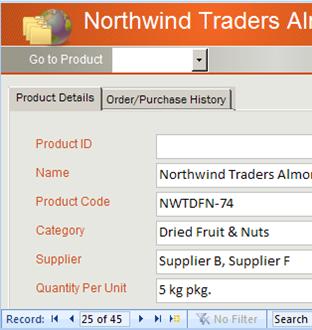
Once your data is in Access, you can take advantage of the marvelous array of form creation and customization tools. Want to create a form with just a few clicks? Use the Form Wizard. Want to design and modify the form layout in real time with live data, move and resize blocks of data, add and remove fields, and instantly see the changes as you build it? Use the new Layout view. Want to add command buttons, list boxes, combo boxes, option groups, pictures, input masks, charts, hyperlinks, and professional-looking styles all on your own? Use the many control wizards and galleries in the
Controls and
Layout groups on the
Design tab of the Ribbon. The message is clear. By using Access you can easily create simple forms, tabbed forms, continuous forms, popup forms, modal dialog boxes, and subforms.
If reading this section gave you a feeling of deja vu, there's a good reason for this. Creating, modifying, and using reports and forms are very similar and make learning Access that much easier.
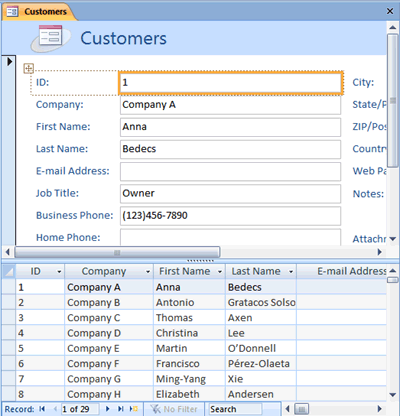
In Access 2007, you can now easily create a new split form, which displays a synchronized datasheet and form view so that you can get the best of both. Once you create a polished form, it's easy to scroll, filter, and even search the data behind the form by using the standard navigation buttons and search box at the bottom of the form.
For more information, see:
Reason 7: Filtering, sorting, and querying in Access is so like Excel

Whichever product you use, you filter data to work with a subset of data, and you sort data to order it just the way you want. In Access, Excel users can filter and sort data in a datasheet view without having to re-learn a completely new user interface. The icons, command menus, commands, criteria, and dialog boxes are very similar, whether you are working with text, numbers, dates, or blanks. You can even save the filters and sorts along with the datasheet view.
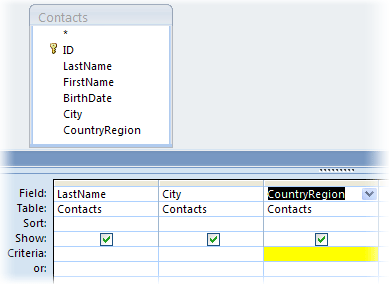
You can create a query in Access, and not even know what SQL stands for. Four query wizards help you create simple queries, find duplicates, locate unmatched records, and create crosstab queries. You don't even have to create a query; simply filter and sort the data the way you want it to look and it's saved with a datasheet. If you want to use the Query designer to create grouped queries, parameters, or advanced criteria, you'll find it bears a striking resemblance to Excel's memorable Microsoft Query — a long lost cousin of Access.
For more information, see:
Reason 8: Collecting data for Excel analysis by using Access
Don't want to enter the data yourself? Then make it a family affair, and get someone else to do it for you.
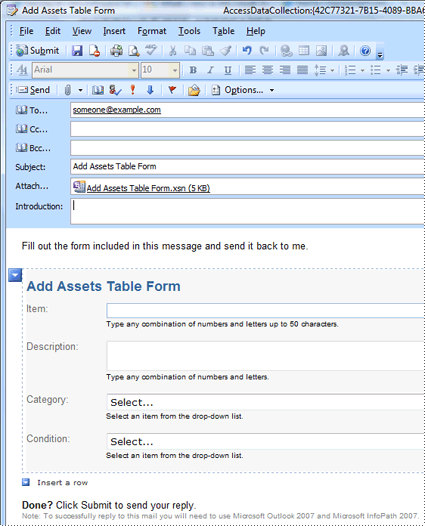
Access makes it easy to gather data from people who are located anywhere on the globe, such as members of your sales team, survey participants, or contacts. By using the Data Collection Wizard, Access 2007 works with Office Outlook 2007 to help you to generate and send an e-mail message that includes a data entry form. When the recipients fill out the forms and send them back to you, the replies are processed according to your specifications. For example, if you choose to have the replies automatically processed, the contents of the form are added to the appropriate table in your database as soon as the reply reaches your inbox.
For example you can:
Do a survey and compile the results in Access.
Create status reports of the latest inventory levels or up-to-date information on pending issues sent by your team at regular intervals to keep you posted.
Organize an event, such as a conference or training to gather contact information, travel and hotel preferences.
Reason 9: Doing a Mail Merge or creating labels
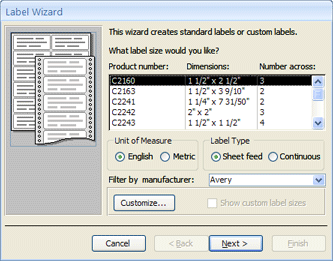
Now that your family has grown, your holiday card list suddenly got bigger and you need to keep track of a lot more birthdays and anniversaries. Not a problem. You can use an Access table or query as a mail-merge data source, and create a mail merge operation by using the Microsoft Word Mail Merge Wizard, for letters, cards, e-mail messages, and envelopes. If you just need to create mailing labels, use the Label Wizard in Access to create and print your labels from a report you create. Want more? Then you can even automatically add a bar code corresponding to each customer address.
For more information, see:
Reason 10: Combining Excel and Access with SharePoint technologies
Both Access and Excel provide commands to connect to data in Microsoft Windows SharePoint Services lists. Excel 2007 provides a read-only (one-way) connection to linked SharePoint lists; whereas Access 2007 lets you read and write (two-way) data in linked SharePoint lists. Access and SharePoint lists work very well together. New Access and SharePoint data types — such as rich text, append only (to support tracking revision history in a memo field), attachments, AutoNumber, lookups, and multi-valued fields — make for smooth integration and few, if any, data inconsistencies.
Once you publish your Access database to a SharePoint site, you can even take the SharePoint list data offline in a local Access database, work with the data locally, and then reconnect to the SharePoint site to upload any changes. Any conflicting data changes made by other users will be handled by a conflict resolution wizard. The forms and reports you created in Access are based on the same data, but linked to SharePoint lists and can be opened directly from Windows SharePoint Services.
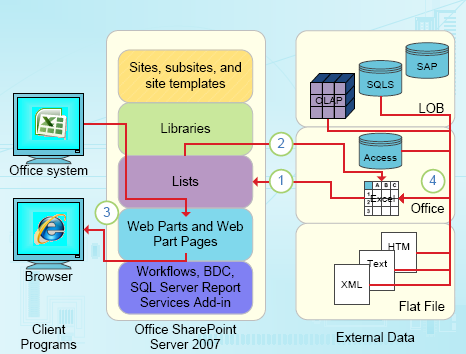
Excel provides the following integration points with SharePoint Server 2007.
1. Do a one-time import of Excel worksheet data into a SharePoint list, or export Excel worksheet data to a SharePoint list to create a permanent, one-way data connection.
2. Use the permanent, one-way data connection to refresh data in an Excel worksheet from the SharePoint list.
3. Publish Excel workbooks to Excel Services, and display and interact with data by using the Microsoft Office Excel Web Access Web Part on a Web Part Page.
4. Import (connect) data into an Excel workbook from OLAP servers, SQL Server and Access databases, and flat files.
Access provides the following integration points with SharePoint Server 2007.
1. Do a one-time import or export of data between Access views and a SharePoint list.
2. Link data between Access tables and a SharePoint list by creating a permanent two-way connection (Updated list data can be in seen in an Access table; updated Access table data can be seen in a list).
3. Take list data offline, update in Access, bring back online, synchronize updates, and resolve conflicts.
4. Display and edit list data in Access datasheet, form, and report views.
5. Publish Access databases to Office SharePoint Server 2007.
For more information, see:
Next Steps: Becoming an Access power user
If you're the adventurous type, peel back the next layer and dig deeper into Access. You can create quite sophisticated desktop database applications without ever writing one line of VBA code. Each Access object has an extensive set of properties and events easily accessible from a property sheet to help you customize your solution. Each object has detailed designers that reveal all the features available to you. Additional database templates are available on Office Online. Field and table templates help you create and customize new tables fast. Design a new database from scratch with built-in database design tools.
Then there are Access macros. Macros use a declarative environment that does not require writing any VBA code, so you don't need to be a developer. Each macro action performs a task, such as opening a form, running a query, finding records, or displaying a message. You can embed macros in any event of a report, form, or control. Most macros have arguments, and you can add conditional logic to them to get them to do what you want. You can even define variables and do error-checking, again without writing VBA code.
Design a prototype and run it by the IT department. Create a "drive-by" solution for your team because they need it ASAP, and do it on a shoestring with a barebones staff. Keep track of tickets sold for a company party, track the shelf life of manufacturing materials, or print acceptance tags for parts. Track tasks, issues, and deliverables in team projects. Create a sales pipeline database to monitor prospective sales within a small group of sales professionals.
As you can see, the combination of Excel and Access is more than just a marriage of convenience. Together, these Office family products form a data dynasty that's hard to beat.

 Excel users will especially feel right at home. Many Access features have a familiar look and feel: The Office Fluent User interface, spell checking, Datasheet view, sorting and filtering, the status bar, saving reports in PDF format, the Help system, and more.
 1. In general, you make a data connection to many data sources, in this case Access.2. You can use either an ODBC driver or OLE DB provider.3. A connection file defines all the information that is needed to access and retrieve data from Access.4. Connection information is copied from a connection file into a workbook and can be edited in a dialog box.5. The data is copied into a workbook so that you can use it just as you use data stored directly in the workbook.For more information, see:
 For more information, see:
 For more information, see:
 For example you can:
 1. Do a one-time import of Excel worksheet data into a SharePoint list, or export Excel worksheet data to a SharePoint list to create a permanent, one-way data connection.2. Use the permanent, one-way data connection to refresh data in an Excel worksheet from the SharePoint list.3. Publish Excel workbooks to Excel Services, and display and interact with data by using the Microsoft Office Excel Web Access Web Part on a Web Part Page.4. Import (connect) data into an Excel workbook from OLAP servers, SQL Server and Access databases, and flat files.Access provides the following integration points with SharePoint Server 2007.
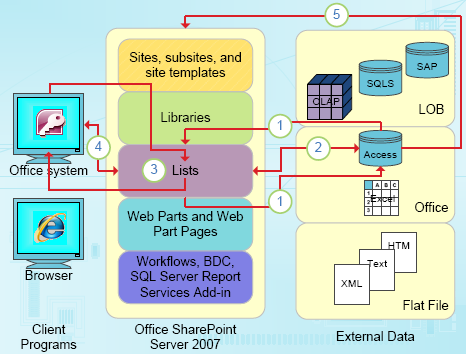 1. Do a one-time import or export of data between Access views and a SharePoint list.2. Link data between Access tables and a SharePoint list by creating a permanent two-way connection (Updated list data can be in seen in an Access table; updated Access table data can be seen in a list).3. Take list data offline, update in Access, bring back online, synchronize updates, and resolve conflicts.4. Display and edit list data in Access datasheet, form, and report views.5. Publish Access databases to Office SharePoint Server 2007.For more information, see:


